
You probably didn’t choose this modem. It showed up in a box from your internet provider, already half-configured, with a sticker on the bottom telling you almost nothing about what’s actually inside it. That’s the normal way people end up owning a TP-Link VX230v, and it’s also why so many of them end up confused a few weeks later when something stops working and Google searches lead nowhere useful.
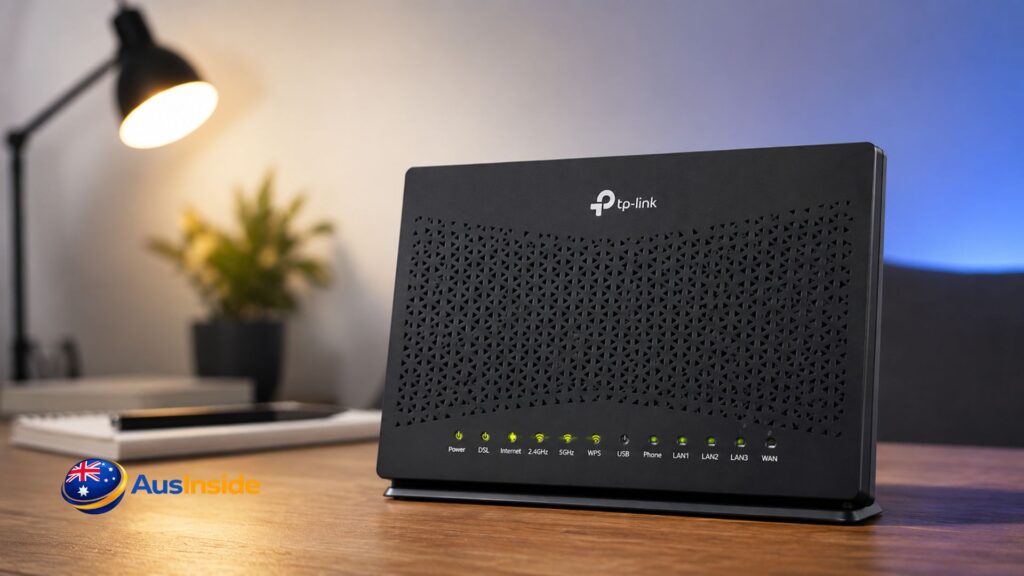
The TP-Link VX230v is a dual-band Wi-Fi 6 VDSL/ADSL modem router, and on paper it’s a genuinely solid piece of hardware for the price. It handles your broadband connection and your Wi-Fi in one box, supports landline-style phone calls over VoIP, and even survives a fair amount of abuse from old copper phone lines. What most pages won’t tell you is that it’s built first for internet service providers, not for you. That single fact explains almost every quirk you’ll run into, from the password that mysteriously isn’t “admin,” to the settings menu that seems to be missing half its options, to the web portal that locks you out for no obvious reason every few hours.
This guide goes further than the usual spec dump. We dug through TP-Link’s own community forum threads, their official datasheet, independent lab testing, and even a technical write-up from a network engineer who reverse-engineered how ISPs control these devices remotely. You’ll find the real setup steps, the actual cause behind the most common complaints, and fixes that go beyond “have you tried turning it off and on again.”
Have A Look On It: Telstra Internet Speed Test
- Quick Overview Table
- What the VX230v Actually Is (And Why It's Confusing)
- Hardware and Ports
- Wireless Performance in the Real World
- DSL Performance and Connection Standards
- VoIP and Phone Features
- Setting Up the TP-Link VX230v
- The Problems Nobody Mentions Until You're Already Stuck
- VPN and Security Features Most People Don't Know Are There
- TP-Link VX230v vs Other Bundled Modem-Routers
- Expert Tips Worth Acting On
- FAQs
- Final Thoughts
Quick Overview Table
| Attribute | Detail |
| Device type | VDSL2/ADSL2+ modem router with integrated Wi-Fi |
| Wi-Fi standard | Wi-Fi 6 (802.11ax), dual-band, AX1800 class |
| Max Wi-Fi speed | 1201 Mbps (5 GHz) + 574 Mbps (2.4 GHz) |
| Max DSL speed | Up to 350 Mbps downstream (VDSL2 Profile 35b) |
| Ports | 1 DSL, 1 Gigabit WAN/LAN, 3 Gigabit LAN, 1 FXS phone port, 1 USB 2.0 |
| Dimensions | 7.9 x 5.9 x 2.7 in (199.7 x 148.6 x 67.5 mm) |
| Power draw | 12V / 2A external adapter |
| VoIP support | Up to 8 SIP accounts, voicemail, call forwarding, T.38 fax |
| VPN support | PPTP, IPSec, OpenVPN |
| Mesh support | EasyMesh (802.11k/v/r), pairs well with TP-Link HX510 |
| Management | Aginet app, WebGUI, plus ISP remote control via TR-069 |
| Typical price | Roughly £50–£60 / $90–$165 depending on region |
| Known weak spot | Web portal/app access can drop after a few hours of use |
What the VX230v Actually Is (And Why It’s Confusing)
Here’s the part most reviews skip entirely. TP-Link makes two very different kinds of routers: the ones you choose yourself, like the Archer or Deco lines sold in retail stores, and a separate “service provider” range built specifically for ISPs to bundle, brand, and remotely manage. The VX230v belongs to that second category.
It’s a dual-band Wi-Fi 6 (802.11ax) DSL modem router with multiple connection options and VoIP telephony, and the latest VDSL2 technology pushes downstream speeds up to 350 Mbps. That’s roughly 3.5 times faster than the previous generation of ISP-supplied modems, which matters if you’re still on an older DSL connection that’s never come close to its theoretical ceiling.
The naming gets murky fast, too. There’s a closely related sibling called the EX230v that shares the same chassis and Wi-Fi specs, but skips VoIP entirely — the VX230v is specifically engineered for seamless VoIP calling, supporting up to 8 SIP accounts along with Do Not Disturb, voicemail, and call forwarding, features the EX230v simply doesn’t have. If you see both names mentioned in the same forum thread, that phone support is the line that separates them.
Why TR-069 Changes Everything
This is the detail that almost nobody explains properly, and it’s worth understanding before you touch a single setting. The VX230v supports TR-069, TR-098, TR-181, TR-369, TR-111, and TR-143 remote management protocols, which let your ISP push configuration changes to the device over the internet without ever touching it physically.
In practice, that means your modem periodically “phones home” to your provider’s server and pulls down whatever configuration they’ve set. A technical write-up documenting this behavior across TP-Link’s ISP-range routers found that the access control server is typically baked directly into the firmware, so even a hardware reset using the pinhole button doesn’t fully free the device from that control. Some units even have a hidden “superadmin” page separate from the regular admin login, with broader settings that your ISP can choose to lock away from you entirely.
This is why certain menus feel oddly stripped down compared to TP-Link’s consumer routers, and why some settings you’d expect to find simply aren’t there. It’s not a bug. It’s intentional, and it’s the ISP’s call, not yours.
Hardware and Ports
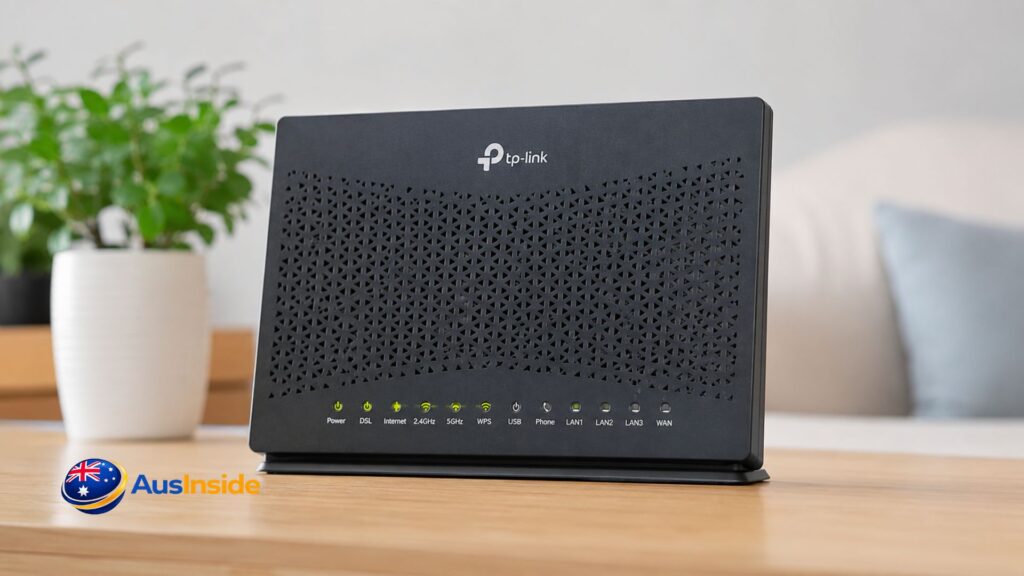
For the asking price, the port selection here is genuinely generous. The interface includes 3 Gigabit LAN ports, 1 Gigabit WAN port, 1 DSL port, 1 FXS port for telephone connections, and 1 USB 2.0 port, alongside power, reset, and Wi-Fi on/off buttons on the casing.
Port Breakdown
| Port | What It’s For |
| DSL (RJ-11) | Standard phone-line connection for VDSL/ADSL internet |
| WAN/LAN (Gigabit) | Doubles as a dedicated WAN if you’re on fiber or cable instead of DSL |
| 3x LAN (Gigabit) | Wired connections for desktops, smart TVs, consoles |
| FXS | Plug in an analog phone for VoIP calling |
| USB 2.0 | Network storage, FTP, media server, or 4G backup |
That USB port is more capable than it looks at first glance. According to TP-Link’s own specification sheet, it supports Samba file sharing, FTP, a basic media server, and 3G/4G backup connectivity, which is genuinely handy if your DSL line drops occasionally and you want a failover option ready to go without buying separate hardware. The limitation is that it’s stuck at USB 2.0 speeds, which already felt a little behind when this device launched and feels more so now.
One thing that trips people up: if you’re connecting through the Ethernet WAN port rather than DSL, you lose one of your four available Ethernet ports to that WAN duty. You’re left with three usable LAN ports instead of four, which matters if you were planning to wire up several devices directly.
Wireless Performance in the Real World
The headline number is 1.8 Gbps combined, broken down as 1201 Mbps at 5 GHz, 574 Mbps at 2.4 GHz. Those figures come from TP-Link’s combination of OFDMA, MU-MIMO, and Beamforming, which together help the router talk to multiple devices simultaneously instead of queuing them one at a time, while also concentrating the wireless signal toward connected devices rather than broadcasting evenly in every direction.
Independent testing tells a more nuanced story than the spec sheet alone. In one detailed test inside an apartment with thick, interference-heavy walls, the VX230v still delivered Wi-Fi coverage throughout the entire space, including outside the building, in a spot where a router costing four times as much couldn’t reach at all. That’s a genuinely strong result for a bundled, budget-tier device.
But the same test also found download speeds dropping by as much as 80% in the back rooms of the apartment, a gap that only closed after adding a mesh extender, and even then the 2.4GHz band continued to underperform. The honest takeaway: in a small to mid-sized home with a fairly open layout, this router on its own should be fine. In anything larger, with multiple floors or thick interior walls, plan for a mesh extender from the start rather than treating it as a fallback.
Setting Up Mesh Expansion
The VX230v uses EasyMesh, a Wi-Fi Alliance standard that lets you add compatible extenders without manually matching settings between devices. Pairing it with the TP-Link HX510 in extender mode produced a noticeably better result in follow-up testing, closing the speed gap in weaker rooms and generally pushing capable devices onto the faster 5GHz band automatically.
It isn’t always a clean process, though. The same testing reported Aginet app issues during the pairing itself, with the connection ultimately completing through a mix of the web portal and the physical WPS button on the extender. If the app stalls or hangs while pairing a mesh unit, switching to WPS is a reliable workaround worth trying before assuming the hardware is faulty.
DSL Performance and Connection Standards
This half of the device tends to get less attention online, but for anyone on an FTTN, FTTB, or pure ADSL connection, it’s arguably the more important half.
The VX230v uses VDSL2 Profile 35b technology, capable of up to 350 Mbps downstream, with G.vector technology helping maintain a stable connection under heavier usage. According to the official datasheet, it also supports the full older standard set: ITU-T G.992.3, G.992.4, G.992.5, and full-rate ANSI T1.413, meaning it’ll work on ADSL2+, ADSL2, and basic ADSL lines just as readily as on newer VDSL2 connections.
In practice, your actual speed will almost always be limited by copper quality and distance from the exchange rather than anything the modem itself is doing. Having that extra headroom in the hardware just means you’re not the bottleneck if your line conditions ever improve, whether through a provider upgrade or simply living closer to better infrastructure than your last address.
It’s also flexible about connection type. The device is fully compatible with VDSL2, ADSL2+, ADSL2, and ADSL standards, and also supports fiber or cable connections through the Ethernet port, plus 3G/4G internet through the USB port, so switching connection types later doesn’t necessarily mean replacing the hardware.
VoIP and Phone Features
This is genuinely the standout feature most competing modem-routers have quietly abandoned. The VX230v natively supports up to 8 SIP accounts, along with caller ID, call waiting, call holding, call forwarding, voicemail, and T.38 fax support, according to TP-Link’s full specification list.
Connect an analog phone directly to the FXS port, and the modem handles the conversion to digital VoIP in the background, effectively replacing a traditional landline without needing a separate VoIP adapter. Most ISPs configure the SIP credentials before the unit ever reaches you, so for the average household, phone service simply works the moment everything is plugged in.
If you’re setting this up independently, you’ll need the SIP username, password, and server address from your provider, entered through the web portal under the telephone or VoIP settings section. Do Not Disturb scheduling is also available if you’d rather the phone stay silent during certain hours without unplugging anything.
Setting Up the TP-Link VX230v
There are two realistic paths here, and which one suits you depends on whether you’d rather tap through a phone screen or type directly into a browser.
Setting Up Through the Aginet App
- Download Aginet and create or sign into a TP-Link ID.
- Power the modem off, then back on, and wait for it to fully boot before continuing.
- Open the app and select your device from the list shown.
- Enter the modem’s login password — the factory default is typically “admin.”
- Go to More, then Internet Connection, then Internet Settings, then DSL, and create a new connection profile.
- Choose the correct modulation type (usually VDSL) and connection type (commonly PPPoE, Dynamic IP, or Static IP), filling in a VLAN ID under advanced settings only if your ISP specifically requires one.
- Confirm the settings and let the app run its automatic connection test.
Setting Up Through the Web Portal
If you’d rather skip the app, the same options are available at tplinkmodem.net or directly at the device’s local IP address, commonly 192.168.1.1. This route tends to suit anyone who’s configured a router before and finds typing settings into a browser faster than tapping through mobile menus.
About That Default Password
This single question generates more forum traffic than almost anything else related to this device, so it’s worth addressing head-on. If “admin” doesn’t work, it’s very likely your ISP set a custom password before the unit ever shipped to you. As one TP-Link support response put it directly: if the issue persists, a hardware reset by holding the reset pinhole for roughly 10 seconds will restore the modem to factory settings, after which a new password can be set.
For the Wi-Fi network password specifically — which is separate from the admin login — check the sticker underneath the unit first. The wireless security key is typically printed on the barcode sticker on the underside of the device. Some providers also rename the network entirely; if you can’t find an SSID starting with “TP-Link,” look for one carrying your provider’s name instead, since several ISPs ship the modem pre-branded with their own network name.
The Problems Nobody Mentions Until You’re Already Stuck
This is the part that separates a genuinely useful guide from a glorified spec sheet. The VX230v has a real, documented reputation for a handful of specific issues, and understanding the actual cause saves you hours of pointless troubleshooting.
The Web Portal and App Lockout
This is the most consistently reported complaint, and it isn’t isolated to a few unlucky units. Detailed independent testing confirmed that access to both the Aginet app and the web portal can disappear entirely after just a few hours of normal use, with a full restart being the only known fix at the time of testing.
If you go to tweak a setting and the portal simply won’t load, or the app spins endlessly without connecting, this is very likely the cause rather than anything wrong with your phone or your home network. Restart the modem and make any changes immediately afterward rather than waiting, since the access window appears to close again after a period of time.
The Persistent 0 Mbps Link Rate Bug
Here’s something almost no other article covers, and it’s straight from TP-Link’s own community forum. Users running a specific firmware build reported that the connection showed a link rate of 0 Mbps despite the internet actually working, with one frustrated owner noting that successive firmware releases failed to resolve it. Other users on the same firmware version reported no such issue at all, suggesting the bug is inconsistent across units or specific hardware revisions rather than universal.
If your modem shows an alarming 0 Mbps reading on its status page but your internet is otherwise functioning normally, this is a known display glitch rather than evidence your connection is actually down. Checking actual throughput with a speed test is a more reliable gauge than trusting that single number.
Intermittent Connection Drops
This complaint surfaces repeatedly, and one detailed forum report included something genuinely useful for diagnosing it yourself: the modem’s system log showed repeated “ppp0 lcp down” entries timed closely with reported connection losses, even after the ISP had already confirmed the upstream and downstream sync rates were within normal range.
TP-Link’s official troubleshooting guidance recommends a more surgical first step before reaching for a full reboot. Rather than restarting immediately, log into the router’s management page, go to Advanced, then Network, then Internet, and use the Connect/Disconnect toggle to attempt recovery without power-cycling the entire device. It’s faster, and it doesn’t knock every other connected device offline in the process the way a full restart does.
Common Mistakes Owners Make
- Assuming standard TP-Link consumer support applies. Because this device ships through ISPs rather than retail, some users have found that TP-Link’s general community forum doesn’t even list the VX230v as a selectable model when opening a support thread, leaving them stuck between the manufacturer and their provider.
- Never enabling Band Steering or QoS. Both ship disabled by default, and both genuinely improve day-to-day performance once turned on through the wireless settings menu.
- Skipping firmware updates entirely. Some reported symptoms have improved after updates while introducing different quirks elsewhere, such as ping spikes appearing after a disconnection issue was resolved. It’s worth checking periodically rather than ignoring update prompts altogether.
- Expecting a factory reset to preserve ISP settings. It won’t. You’ll need your own connection credentials on hand afterward, which not everyone has saved somewhere accessible before resetting.
VPN and Security Features Most People Don’t Know Are There
Buried in the spec sheet, and almost never mentioned anywhere else, is genuine VPN client support. The device supports PPTP, IPSec, and OpenVPN protocols natively, alongside an IPv4/IPv6 SPI firewall, DDoS protection, service filtering, and IP-MAC binding for access control.
That’s a meaningful amount of capability for a device most people assume is just a basic ISP-supplied box. If you’ve been paying for a separate VPN router or running a VPN client on every individual device, it’s worth checking whether the VX230v’s built-in support covers your needs first, particularly if your ISP hasn’t locked that section of the settings menu behind their remote management profile.
On the security side, it’s worth being aware that vulnerabilities affecting various TP-Link router models have been exploited by botnets in different regions, a concern that’s come up directly in discussions among VX230v owners deciding whether to keep using the device. The realistic response isn’t necessarily to replace the hardware, but to keep firmware current, change default credentials immediately, and avoid exposing the admin portal to remote access unless you specifically need that feature enabled.
TP-Link VX230v vs Other Bundled Modem-Routers
If you’ve been offered a choice by your provider, or you’re weighing whether to request a replacement, here’s how it compares against the other devices commonly bundled with broadband plans.
| Device | Wi-Fi Standard | VoIP | Mesh Support | Reputation |
| TP-Link VX230v | Wi-Fi 6 | Yes, 8 SIP accounts | EasyMesh | Strong initial performance, known reliability quirks over time |
| ZTE H1600 | Varies by region | Limited | Limited | Reported as disappointing in independent comparative testing |
| NetComm NF20MESH | Wi-Fi 5/6 depending on model | Limited | Yes | Also reported as underwhelming in the same testing round |
| Carrier-specific units (Telstra, Optus, Vodafone-style) | Varies | Varies | Varies | Generally considered the most reliable bundled option, but tightly bound to that one provider’s network |
Expert Tips Worth Acting On
A handful of small adjustments make a real difference if you’re keeping this device long-term rather than replacing it outright.
- Turn on Quality of Service and Band Steering manually right after setup, since neither is active by default despite being genuinely useful for most households.
- If portal access keeps dropping, make configuration changes right after a scheduled restart rather than waiting until later in the day.
- One well-placed EasyMesh extender solves the vast majority of dead-zone complaints; adding several rarely improves things further and just adds complexity.
- If all four Ethernet ports matter to you, connect through the DSL line rather than the Ethernet WAN port, since using the latter for your internet connection sacrifices one LAN port.
- Before assuming your internet is down because of a 0 Mbps reading on the status page, run an actual speed test first; it may simply be the known display bug rather than a real outage.
Don’t Forget To Read It: Novated Lease Calculator
FAQs
Is the TP-Link VX230v actually a good modem router?
For everyday use, yes, the initial performance and feature set are genuinely strong for the price, especially the built-in VoIP support most competitors have dropped. The honest caveat is long-term reliability, which multiple independent testers and forum users report degrading gradually, often needing a restart every week or two to stay smooth.
Why does the web portal or Aginet app keep timing out?
This is a documented, recurring issue rather than something specific to your unit. Access can disappear after a few hours of normal use, and restarting the modem is currently the only consistent fix.
My modem shows 0 Mbps but the internet works fine. What’s going on?
This matches a known firmware display bug reported on TP-Link’s own community forum across multiple firmware versions. It’s a reporting glitch on the status page rather than an actual connection failure in most cases.
What’s the default login if “admin” doesn’t work?
Your ISP almost certainly pre-configured a custom password before shipping the unit. A hardware reset using the reset pinhole, held for about 10 seconds, restores factory defaults so a new password can be set.
Can my ISP control settings on my modem remotely?
Yes. The VX230v supports TR-069 and related protocols specifically so providers can manage configuration remotely, which is also why certain settings may appear locked or missing depending on how your ISP has configured the device.
What’s the real difference between the VX230v and EX230v?
They share nearly identical hardware and Wi-Fi specs, but the EX230v has no VoIP or SIP calling support. If a landline-style phone connection matters to you, the VX230v is the one to look for.
Does it support a VPN?
Yes, natively, through PPTP, IPSec, and OpenVPN, which is a genuinely uncommon inclusion for a device this price that most buyers never realize is there.
Should I worry about TP-Link router security vulnerabilities?
Keeping firmware updated, changing default credentials, and disabling remote admin access unless you need it covers the bulk of realistic risk, and applies to virtually any internet-facing router rather than being unique to this model.
Final Thoughts
The TP-Link VX230v earns its popularity honestly: strong Wi-Fi 6 speeds for the price, genuinely useful VoIP calling most rivals have abandoned, and DSL support flexible enough to cover almost any copper-line connection type. Where it loses people is consistency over months of continuous use, with the portal lockouts and occasional connection drops being real, documented quirks rather than bad luck or isolated complaints. If your ISP has already given you one, the fixes above should keep it running smoothly with minimal frustration. If you’re choosing freely and long-term reliability is non-negotiable for you, it’s at least worth comparing against the alternatives before committing.